Drone Collision Setup
BP_AIDrone ships with its collision set up correctly — its sphere is already transparent to the navigation trace channel, so if you use the included pawn you don't need to change anything here. This page matters when you (a) build a custom drone pawn, or (b) resize the collision sphere — in which case the clearance settings below must follow.
What actually matters: sphere size vs clearance
The setting that you do need to get right is the relationship between the drone's collision sphere radius and the pathfinding clearance. Two values define how much empty space a node/edge needs:
TraceRadius— onBP_DroneNavManagerNodeClearanceRadius— onBP_DroneNavVolume
Keep them equal, and set both to:
collision sphere radius + ~25–30 (corner-safety buffer)
For the included drone (sphere radius ~75) that's ~105, which is the default. If you scale the drone or swap in a different collision sphere, update these to match and re-bake.
Why the buffer: path smoothing pulls the route tight against this clearance boundary at convex corners. If clearance equals the sphere radius exactly, the drone scrapes corners; the extra ~25–30 keeps it clear. See Tuning → Clearance.
Two related sizing rules:
- Size the collision sphere a touch smaller than the visible mesh (e.g. mesh ~80–85, sphere ~75) so the body doesn't snag on wall corners.
- Set the follower's
AcceptanceRadiusto roughly the drone's bounds (~100) so the planner doesn't thread it through gaps narrower than itself.
Why the drone must be transparent to the nav trace channel
This only bites on a custom pawn — the included drone already handles it.
The navigation system finds nodes and validates paths using traces (sphere traces on a trace channel — Visibility by default), and every query starts at the drone's own location. If the pawn's collision blocks that channel, the very first trace hits the pawn's own collider, reports "blocked," and the system returns no path — every time (the classic "Path Not Found").
The fix on a custom pawn:
- On the pawn's collision component, set the trace response for the navigation channel (
Visibilityby default) to Ignore (or Overlap). - Keep the object response to
WorldStaticas Block so the drone still physically collides with walls during movement.
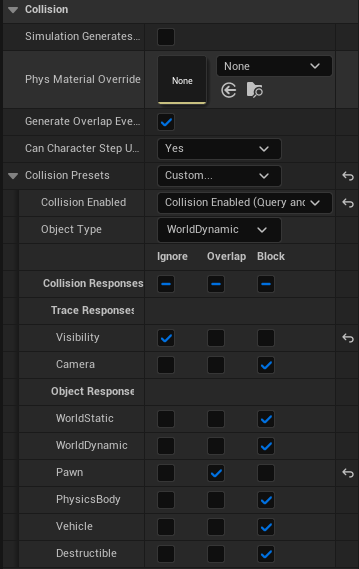
Movement sweeps and physics use object responses; the nav queries use trace responses. So a drone can block WorldStatic (solid for movement) while ignoring Visibility (transparent to nav) at the same time. Configure them separately.
Notes
ObstacleTraceChannelon the manager and volumes defaults toTraceTypeQuery1, which resolves to Visibility in a stock project. If you add custom trace channels, keep the manager, the volumes, and the drone's "ignore" response all pointing at the same channel.- The system already adds the asking actor to Actors to Ignore on its queries; the channel response above is the part you must set on a custom pawn.
- After any change to clearance or to the collision sphere, re-run Bake Navigation.